Local Plagiarism Search with Plagius
Plagius includes a local search feature that allows you to find similar passages in files stored on your computer or on network shares.
This feature is available in Plagius Pro12 and Plagius Pro24 and is especially useful when you need to compare documents against your own local collection.
Main features:
- Compare one document or text against one or more folders;
- No fixed limit on the number of files or subfolders;
- Supported formats include doc, docx, ppt, pptx, odt, pdf, rtf, and txt;
- Works with Windows shared folders as well.
How local search works
In local search, Plagius scans the files from the folders you choose and creates an internal index.
This index stores the document text in an optimized format, which makes searches much faster, even when you have many files.
Whenever files are added, removed, or changed, Plagius updates only the differences instead of rebuilding everything from scratch.
The comparison always happens in an one-against-all model: you choose one document or text to analyze, and Plagius searches for similar passages in all indexed files.
How to use it
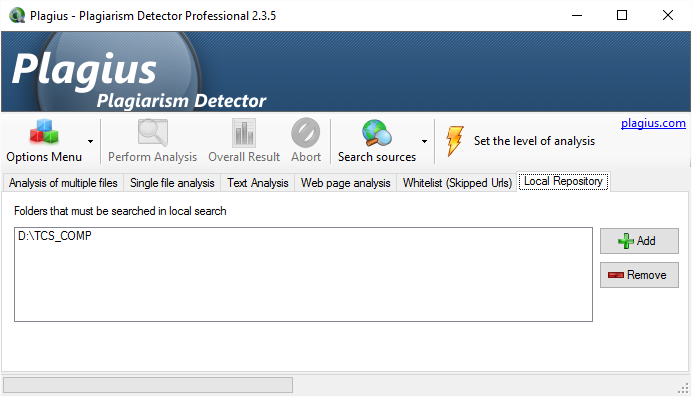
When the feature is enabled, a Local Repository tab appears in the main window.
To use local search:
- add the folders you want to include in the search;
- wait for the initial indexing to finish;
- start the analysis normally;
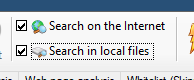
- choose whether Plagius should search in local files, on the Internet, or in both.
If you have many Word files and indexing is too slow, you can try another Word reader mode in: Settings > Advanced > Word file reader mode.
To start searches, select the option to search in local files:
Understanding the results
In general, local search results are similar to Internet analysis results.
However, instead of showing website links, Plagius shows the file path of the matching document on your computer or network.
Another difference is the highlight color: local matches are usually shown using green shades.
Limitations and notes
- The practical limit depends on your hardware and index size;
- There is no fixed limit for the number of files or folder depth;
- It works with Windows shared folders;
- WebDAV shares may not work correctly;
- Analysis speed depends on document size and the number of indexed files.
If you do not have an activation key yet, you can download Plagius and try the software before purchasing a license.