Plagius User Manual
This manual covers the main features of Plagius and is updated periodically as new features are released or as users request more guidance.
Analyses
Plagius analyzes texts to look for identical or very similar passages on the Internet. The analyzed content may come from a file, from text entered directly into the program, or from a web page.
On the main screen, you can also choose how the analysis will run by enabling or disabling options such as Search on the Internet, Search on the computer, and, when available, Enable AI detection.
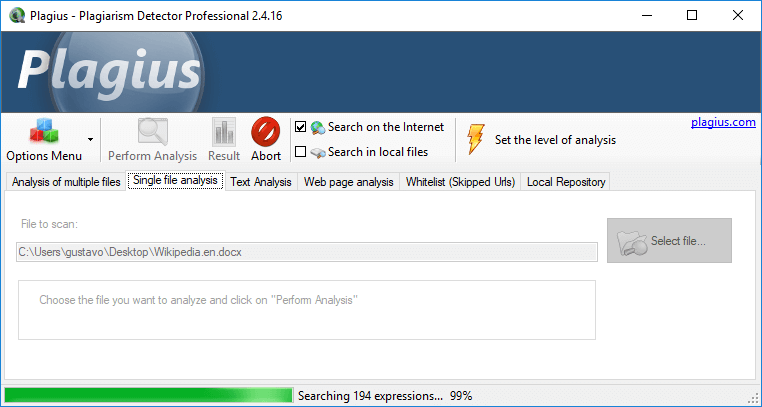
The main screen offers several analysis modes: single file analysis, text analysis, multiple file analysis, and web page analysis. Some features are available only in the Pro12 and Pro24 versions.
File Analysis
Two tabs allow file-based analysis. The Single File Analysis tab lets you analyze one document at a time. To start, choose a file by clicking Browse file..., then click Execute Analysis.
The Multiple File Analysis tab lets you analyze multiple documents in sequence.
Text Analysis
In the Text Analysis tab, you can type or paste text directly into the available area. It works similarly to file analysis.
Web Page Analysis
This feature lets you search for plagiarism suspicions in web pages. It works similarly to a regular analysis, but instead of selecting a file, you provide a web address to analyze.
Viewing Results
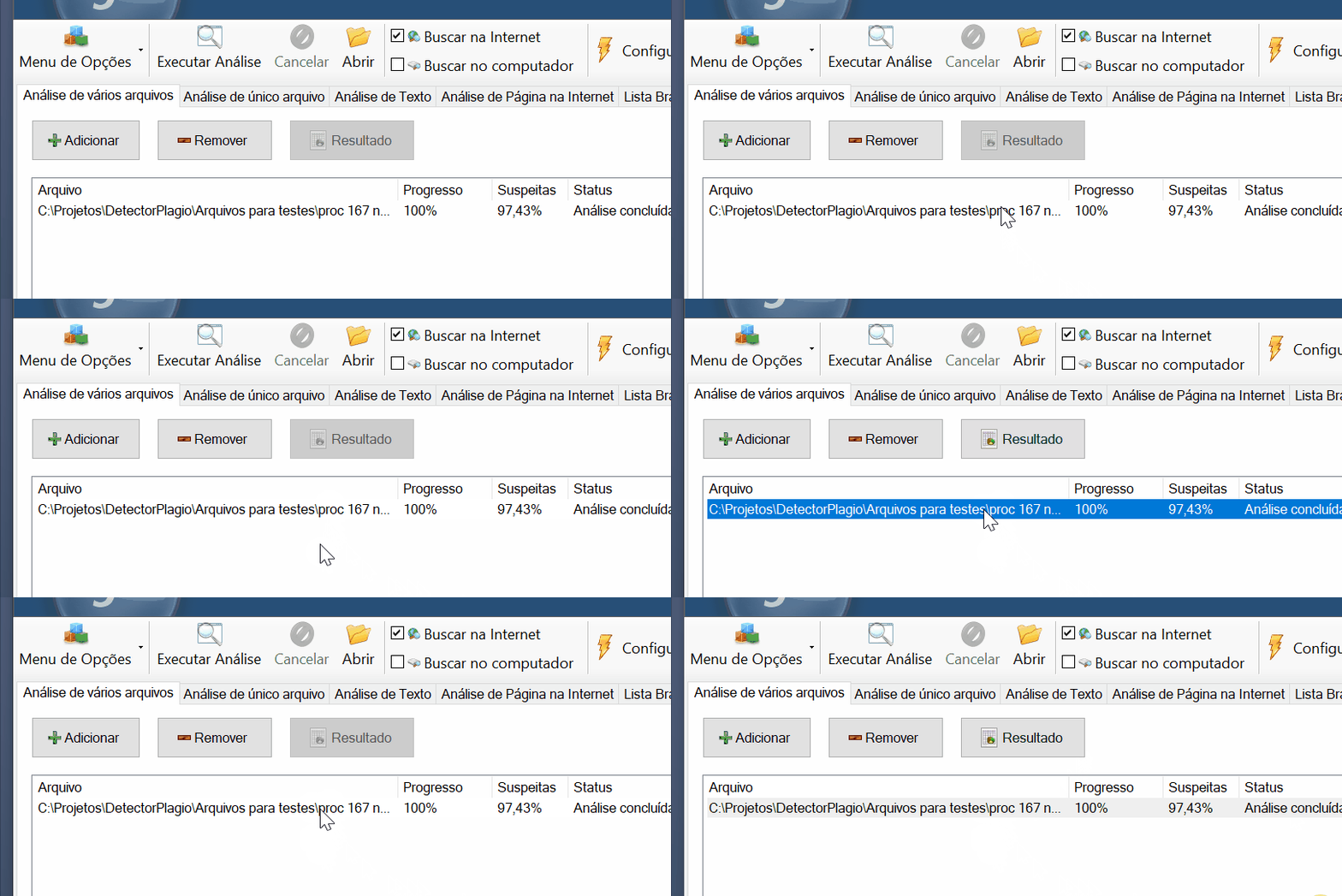
After an analysis is completed, the Result button becomes available. If it is disabled, that usually means an analysis is still running or no analysis has been completed yet. Also make sure you are viewing the same tab where the analysis was started.
In multiple file analysis, this button is replaced by a smaller button below the list, which opens the result for the selected document.
Ignored Addresses
The Ignored Addresses section stores URLs that should not be considered during analyses.
A common use case is when you want to analyze a document that has already been published on the Internet. In that case, you can add the published address so Plagius ignores matches coming from that location.
Analysis Results
The analysis result is a set of information that includes highlighted suspicious passages, a list of addresses that deserve investigation, and statistical data.
On the top bar, you can save the result, open it in the browser, print it, ignore parts of the analysis, and apply filters.
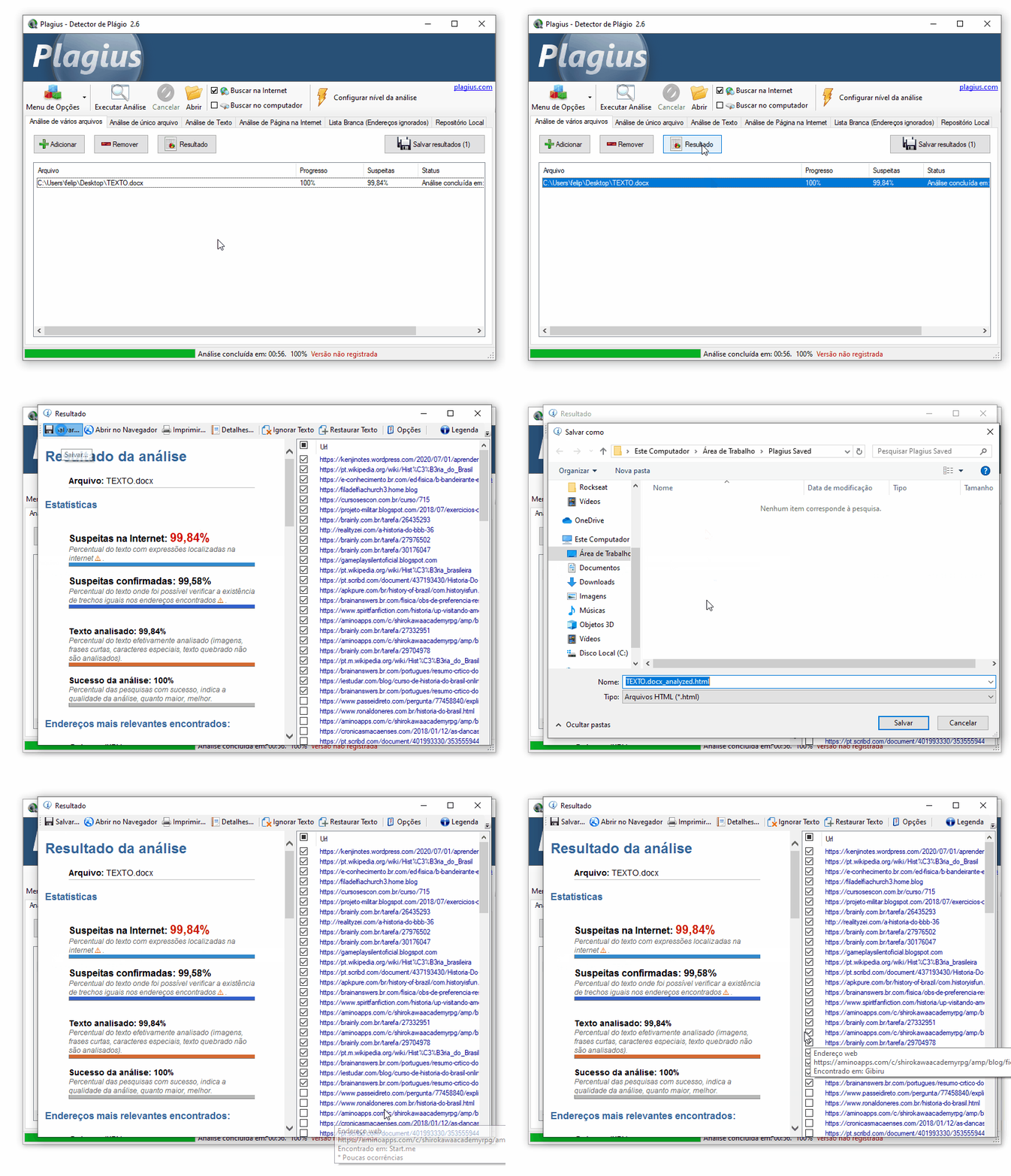
The result screen also includes tools for directly comparing the analyzed text with the references found during the search.
There is a dedicated page about the result screen and how to interpret the information:
How to Interpret Plagiarism Results with Plagius
Settings
Plagius includes several settings that can be adjusted to your needs. Below are some of the main configuration groups.
General
Here you can configure the language, text file encoding, and automatic updates.
Text file encoding
This option helps solve compatibility issues when opening text files. If accented characters and special characters are displayed correctly, there is no need to change this setting.
Connection
This group contains connection and proxy settings. They should only be used when your Internet access depends on a proxy server, which is more common in companies and institutions.
If your analyses are working normally, keep these settings at their default values.
There is also a Proxies section used to control proxy usage during searches and, if needed, update the proxy list automatically.
Analysis
This section contains settings related to how Plagius performs the analysis.
Analysis Depth
Analysis depth defines how many scans Plagius will perform on the document.
The higher this level, the more phrase combinations will be searched. This can increase analysis time and, in some cases, bring additional results.
We recommend keeping the default setting (3).
Analysis Speed
The speed setting controls whether Plagius works more lightly or more intensively during the analysis.
At lower speeds, the program tends to use fewer computer and Internet resources. At higher speeds, the analysis usually finishes faster, but may use more resources.
Result Verification
During result verification, Plagius opens the addresses it found to confirm whether the analyzed passage actually appears there.
This helps reduce false positives and improves automatic confirmation of the suspicions found.
If needed, it can be disabled with this option:
Disable direct comparison with URLs (automatic result validation)
You can also limit how much Plagius is allowed to download during this step with:
Maximum download size for result validation
Another option related to this step is:
Number of consecutive equal words to consider suspicious
This setting defines how many consecutive words must match for a passage to be highlighted as suspicious during direct comparison.
We recommend keeping the default value: 6
Result
Result counting settings
These settings help Plagius give more emphasis to what is most likely relevant in the final result.
For example, if an address appears only a few times in a long analysis, it may not be important enough to stand out.
In general, we recommend keeping low values so potentially useful results are not hidden.
Local Index
This section contains information about the program's local index, including files already indexed and the local cache used by Plagius.
It is also where you can find the Enable local cache of downloaded pages option, which helps reuse content that has already been retrieved.
Advanced
Analysis
If your document is producing many false positives, you can increase the size of the expressions searched on the Internet.
The Number of words to search an expression setting lets you define the minimum and maximum number of words that extracted phrases may contain. In this post, this mechanism is explained in more detail.
File formats
In this section, you can configure alternative ways to extract text from the files you want to analyze.
For example, Word files (.docx) may be opened internally by Plagius, by an external program called AbiWord, or by a Windows feature (IFilter) for users who have Office installed.
There are several ways to open the same file type because each mechanism has advantages and disadvantages. For example, AbiWord is a little slower and may sometimes produce errors; the internal Plagius mechanism may not extract text from every part of the document, such as text inside a drawing; and IFilter is not available on every computer.
Plagius decides this automatically, but if problems occur, some manual adjustment may be necessary. In general, Plagius support will suggest these changes when needed.
Information
This section contains information and diagnostic tools for the program. It is usually used only when requested by support.